
Hi Friends,
SQL Server Data Publishing Wizard was one of the most popular downloads for SQL Server 2005. It allows a developer to deploy a local database from his development environment to a hosting provider on a remote system. The wizard creates a single script file which contains the schema and the data. This script file can be used to create an exact replica on the target system.
Remember, I mentioned that this wizard is available since 2007. So it was designed for SQL Server 2005 and requires SMO (SQL Management Objects) for 2005. You can still download this wizard at: http://www.microsoft.com/downloads/en/details.aspx?FamilyId=56E5B1C5-BF17-42E0-A410-371A838E570A&displaylang=en
But wait; the story is not complete; since the release of Visual Studio 2008, this wizard is integrated in to Visual Studio IDE. And yes, it means that you have this in VS 2010 as well. So, I am going to show you how you can work with this feature to publish the schema and the data in a single script file for your local database. (What I am showing you will also work with VS 2008 with minor difference in the UI)
Start Visual Studio 2010 and show Server Explorer.
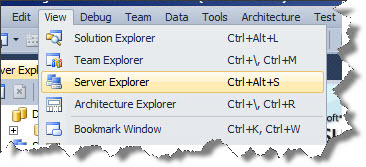
In Server Explorer, connect to the database for which you want to create the script. In my example, I am connecting to Northwind database which is located AmitBansal\sql2k8r2 instance.
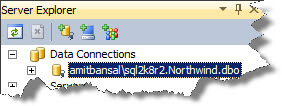
Well, adding a data connection is very straight forward; just right click Data Connections and click Add Connection. Supply the necessary details including Instance name, Authentication details and the database and you are done.
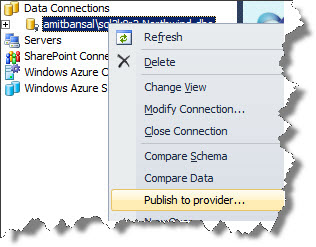
Once you are connected, right click the connection you just created and click Publish to Provider…
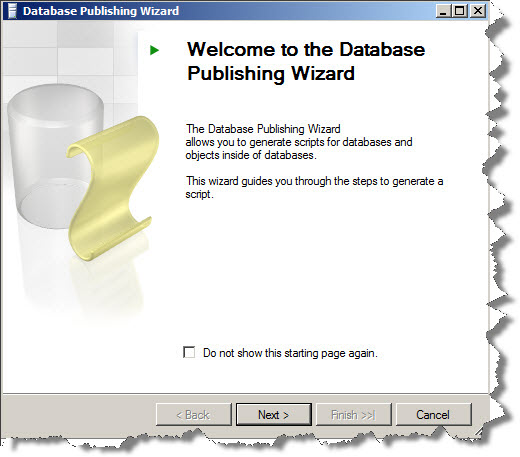
In the welcome wizard, click Next.
In the Select Database page, select the database which you want to script out:

Observe that you can script out all the objects. If you want to be selective, uncheck the option at the bottom of the page. For this example, let us uncheck this option so that we can script out only a few tables. Click Next.
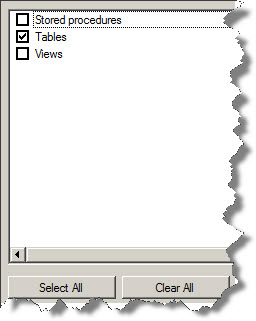
In the Choose Object types pages, let us select Tables. Click Next.
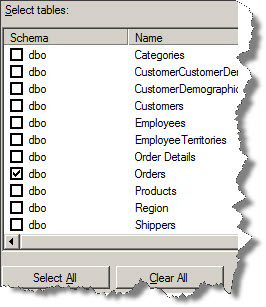
In the Choose Tables page, select a few a tables that you want to script out. (Be careful if you are scripting out a table with millions records 🙂 – For this example, I am only scripting out the Orders tables. Click Next.
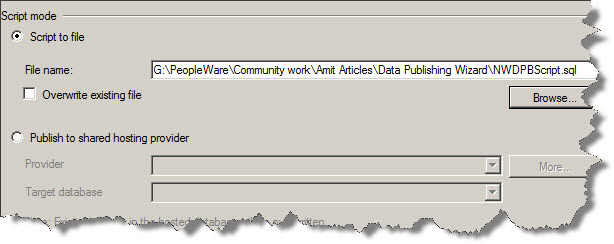
In the output location, you need to specify the location of the script file. You can directly publish to the shared hosting provider by selecting a hosting provider or configuring a new one. For this example, let us script out in a file. You may overwrite an existing file. Browse and specify your file and then click Next.
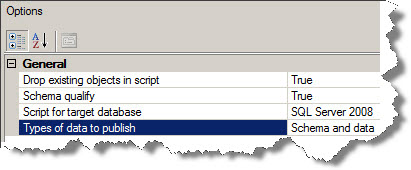
In the Publishing Options page, is the real meat. You can choose to include the script for ‘drop existing objects’. You can choose to qualify every object with the schema name. You can choose the target database version which could be SQL Server 2005, 2000 or 2008 (the order is strange). Finally, you can choose to script out only the Data, or only the schema or both. Let us go ahead and choose ‘Schema and Data’. Click Next.
Review the summary and click Finish. Once done, close the wizard. Review the script file to observe it contains what you want. Do you observe that the script also contains data from some other tables like Customers and Employees. Any takes? Let us interact on this one at the forums.

Great article Amit.
The same is possible using Script Wizard of SSMS 2008.
Hi Sarab, can you let me know which option in the script wizard allows us to publish the data?
Hi,
This is what i was refering to: https://www.sqlservergeeks.com/blogs/sarab/sql-server-bi/13/scripting-data-along-with-schema
Thanks,
Sarabpreet Singh
Hi Sarab, Those options that you showed in your blog post do not appear on my instance. I am using SQL Server 2008 R2 Dev edition. Not sure why the options are not popping up? Which version/edtiion do you use?
Hi Amit,
I am using SQL Server 2008 R2 x86 Enterprise Edition, the one i got with MSDN subscription.
But i think this should be available over all editions (as stated by Sachin)
Thanks,
Sarabpreet Singh
how to use it from sql server 2005