
Hi Friends,
In my last blog “Contained Databases in SQL Server 2012 – Denali” I wrote about the basics of Contained /Partially Contained Databases and its advantages. In this article I’ll show you step by step, How to create partially contained Databases, its users (users with password & without Logins) and how they authenticate. So let’s begin
1. How to Create Partially Contained Database.
Creating a contained DB is not at all a complex task; the only sequence you need to remember (which is quite logical also) is to Enable Contained DB Setting at Server Level before creating a Contained DB. This feature is disabled by default, why? The same old reason to minimize the surface area. (Security)
This feature is dynamic in nature and doesn’t require any restart. If you don’t know, How to find what all changes require SQL Service Restart? Read this blog
You can enable the setting either from SQL Server Management Studio or via T-SQL Command.

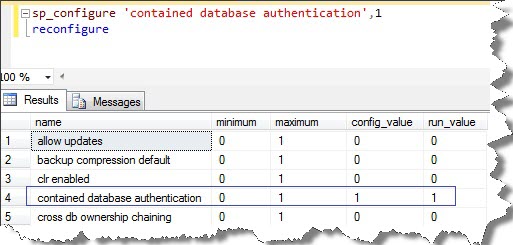
Script:
sp_configure 'contained database authentication',1
reconfigure
Since the server is ready to support Contained Databases let’s create DB. Again you have two choices either to go for T-SQL or GUI.
For creating Contained DB viaT-SQL, use the new containment switch in Create Database command:
CREATE DATABASE sarab_TEST_CDB
containment = partial
go
If you are GUI lover just open the Create Database window, choose the containment type to Partial in the Options Tab before hitting that Ok button and your Contained DB is ready.
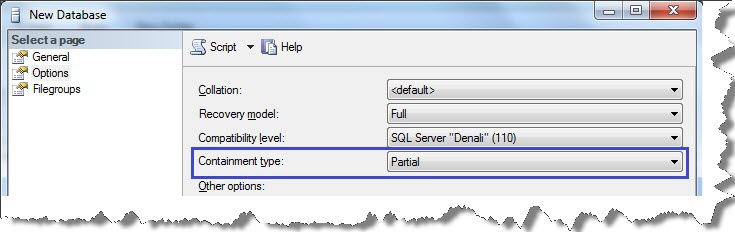
Now let’s check whether the created DB is actually a Contained DB or not, for this all we need to do is query sys.databases for containment and containment_desc columns.
2. How to create Users without login (Users with password)
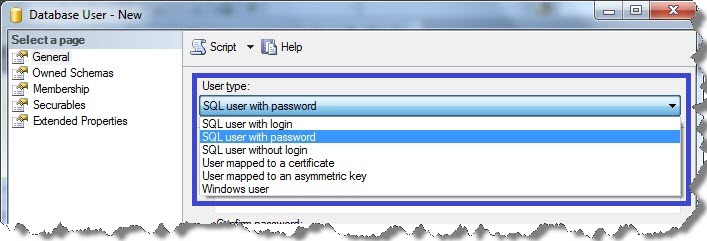
The first thing you’ll notice is the new and advanced window while creating the user for Contained Database using GUI. You get many options while creating a User, the first being User Type. This option depends what all other fields will be visible while creating the user.
Fig1. Shows the New User Creation Window
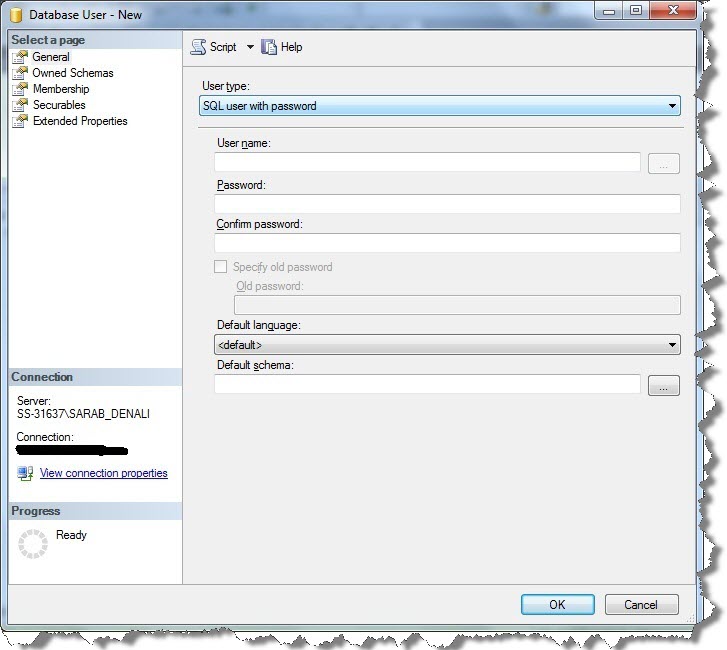
Fig2. Options for User Type
You can also create user with password for your contained DBs using T-SQL, here is the script:
CREATE USER Tim WITH PASSWORD = 'strong_password'
Go
In Case you want to assign DB Role to these users, this can be achieved through Membership tab.
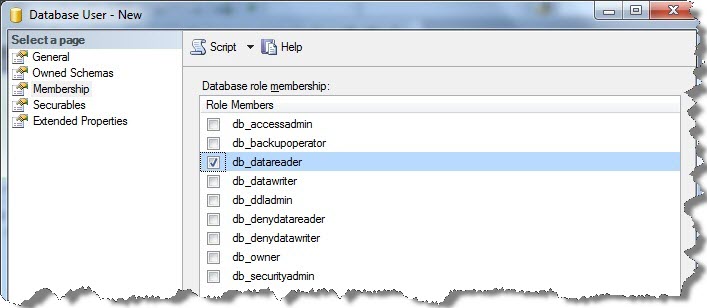
Fig3. Membership Tab
3. Connect DB without Login (using Users with Password)
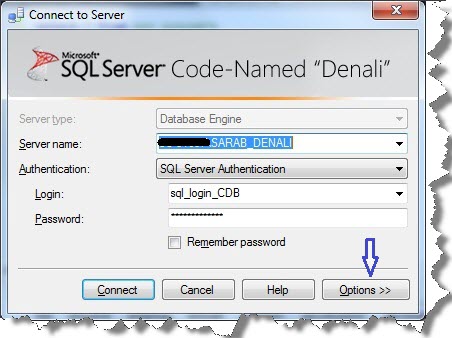
Open Connect to Server Dialog box, Enter Server Name, User Name in Login field and User Password in Password field and click Options.
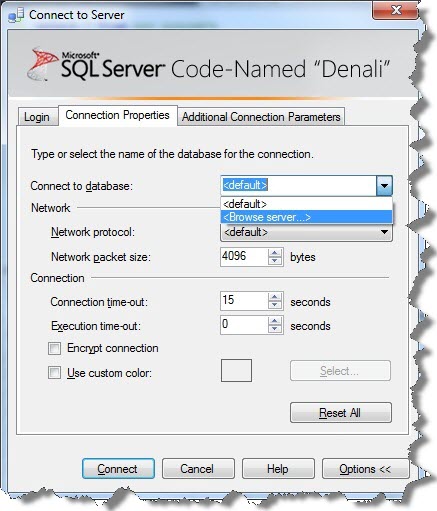
Now choose “Browse Server” option for Connect to Database Field, this will give you an Information Pop-up saying “Browsing available DBs require connecting to server which may take a few moments would you like to continue?”

Clicking Yes will connect to Server and show you all the Databases in a separate window.
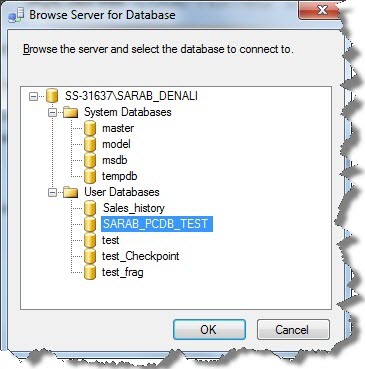
Choose the Partial Contained Database you want to connect (your user should have connect access to the database) and press connect.
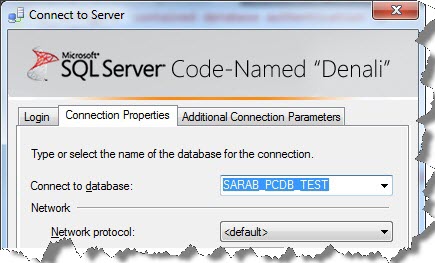
That’s it; you are now connected to a Database without a Login.
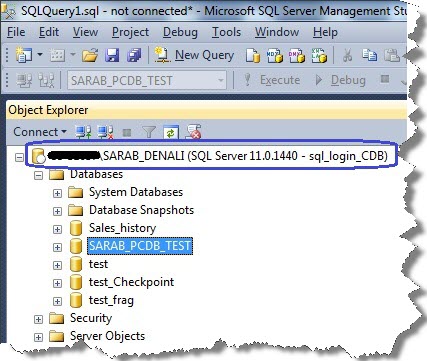
Hope you learned something new, do leave us a comment.
Regards
Sarabpreet Anand
Like us on FaceBook | Follow us on Twitter | Join the fastest growing SQL Server group on FaceBook
Follow me on Twitter | Follow me on FaceBook

Hi,
Really a very good post.
I have followed exact steps but while connecting it is giving 18456 error(Login failed).
Kindly suggest.
Ok got it.
I have to type the name of database to whom i need to connect.
Thanks for the post again.
Deepraj
Thankyou sir for documenting this step by step, i tested and learned this within 20 minutes.
once again thankyou!
Thanks Pitambar,
Glad you liked it.