
Hello,
SFTP, or secure FTP, is a program that uses SSH to transfer files. Unlike standard FTP, it encrypts both commands and data, preventing passwords and sensitive information from being transmitted in the clear over the network. It is functionally similar to FTP, but because it uses a different protocol, you can’t use a standard FTP client to talk to an SFTP server, nor can you connect to an FTP server with a client that supports only SFTP (Source: Knowledge Base – Indiana University.)
Now, since it is evidently clear that one cannot configure the standard FTP Task to establish a SFTP session, this leaves user with two options
- Create a C# or VB program that will initiate the SFTP call, perform the required operation and also exit the session gracefully.
- Use out of box SFTP client in conjunction with SSIS tasks to perform any required operation(For example: Fetch the ETL load from remote SFTP server and load them into staging area for ETL operations)
Here I let us have a walkthrough for option B which is more elegant (as far as a database developer is concerned)
Let’s create a new SSIS package and drag the Execute Process Task on the designer pane.
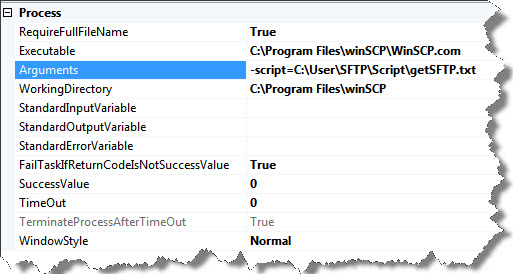
Also, you should have a SFTP client installed on your local machine for the Execute package task to consume the executable with any command arguments, if required.
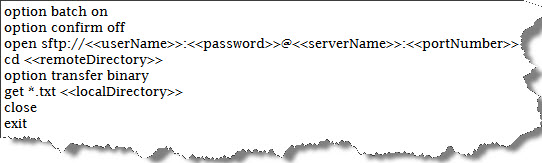
Before we proceed ahead, we should have a batch script file for the SFTP client to execute.
Say, I need the SFTP client to connect to the remote host and get all files from a specified remote directory to my local development environment at a local directory.
See below for the script:
Save this file and now we shall configure our Execute Process Task to execute this file.
WinSCP comes in two flavors. One which is WinSCP.exe (the executable with a neat GUI) and WinSCP.com (the command line interface of the executable)
Since we need to program the component and control the default behavior by overriding it with a script file, we shall use the command line interface.
Pass the fully qualified path to script file as the argument and set the working directory to the native location of the executable on local.
The package when executed will get all files ending with .txt extension found in the remote directory and later transfer each of them to the local path.
That’s all. Happy learning
Regards
Raunak Jhawar
Like us on FaceBook | Follow us on Twitter | Join the fastest growing SQL Server group on FaceBook
Follow me on Twitter | Follow me on FaceBook

very good, now as in the case would upload the file to sftp. thank you very much
After doing the above steps,my package is executing fine,but the desired result (recieve files from remote path to local machine) is not achieved.
when i run my script in the command prompt,it runs fine and establishes connection to my sftp server.i’ve also set me WorkingDirectory to the same path as my WinSCP executable.
Am i missing something?
How are you executing the package?
Hi Raunak,
I’m passing the Winscp exe file (C:\program files) path in “Executable”
Specifying the folder path in which my txt/bat file in “Arguments”
lastly,the working directory is set to a folder on my local machine.
Am i missing something here?its exactly the same as you’ve mentioned in your blog above.
Thx in advance for your help
Appreciated
Hi,
Can we directly read a csv file from SFTP location without downloading to local system from SSIS? I can use FTP task component but it will download files from FTP location. My requirement is to read files from SFTP location without downloadinng them elsewhere due to confidentiality/misuse of data.
Regards,
Chaitanya
Hi Rj,
Am using filezilla to download the files from SFTP using Execute process task in SSIS.,
After i configured everything as mentioned in the article am getting the below error
-s and -c cannot be processed at the same time
can you guide me
Regards,
Ragu